Every link,
the right browser.

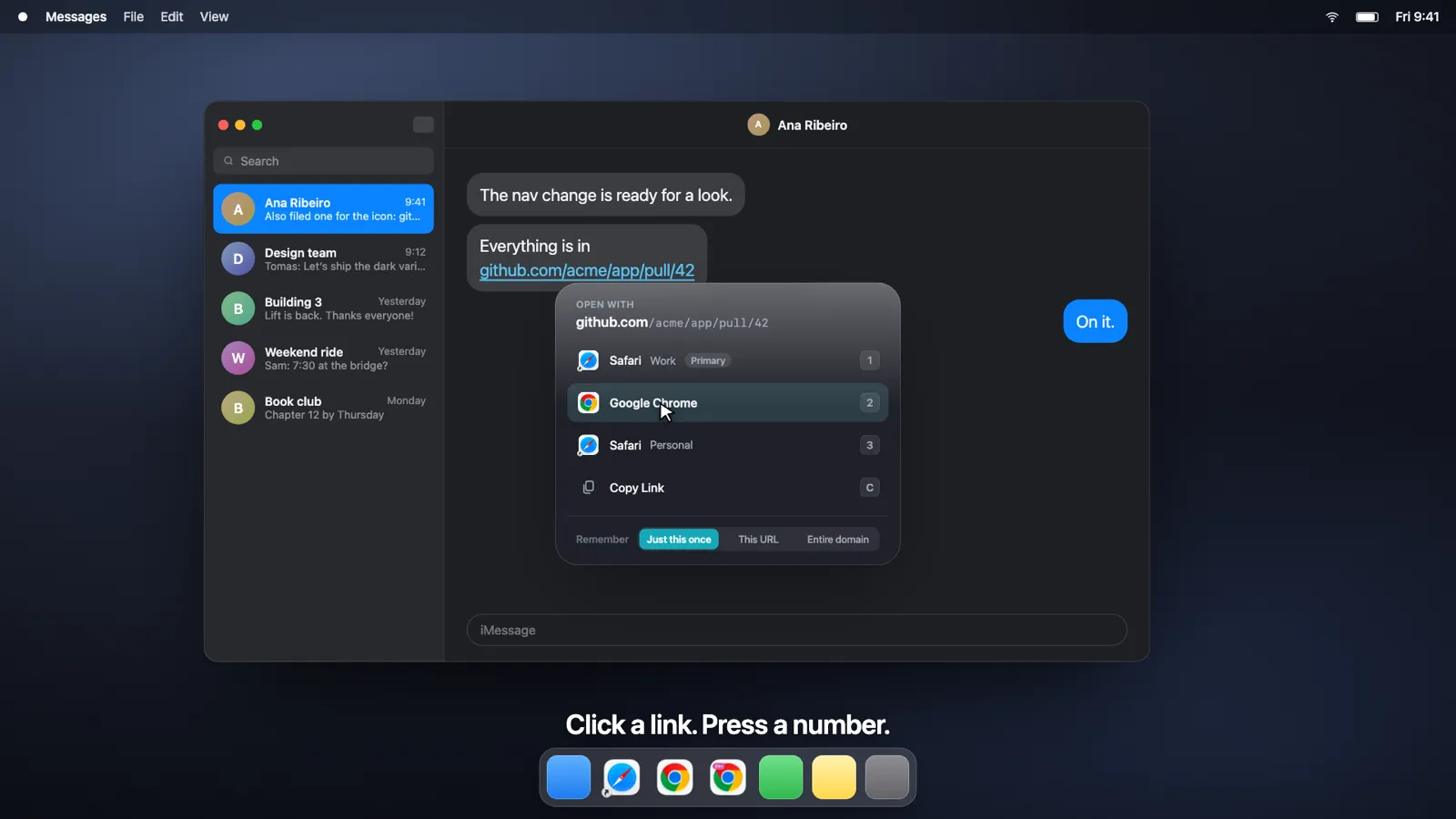
Click a link anywhere on your Mac and a small picker appears at your pointer. Press a number for the browser or profile you want — watch it happen below.

  1. A link arrives.

    In Mail, Slack, Notes, a terminal — anywhere on your Mac. You click it, like always.

  2. The picker appears where you clicked.

    Not a window, not a Dock icon: a small glass panel beside the pointer, listing your browsers and profiles.

  3. Press a number.

    1 to 4 for the browser or profile you want. ↑ and ↓ walk the list; Return opens the highlighted one.

  4. It opens where you meant it to.

    The picker is gone before you notice it was there.

  5. Remember, if you like.

    Choose This URL or Entire domain under Remember before you pick…

  6. Next time, no picker.

    …and that site opens in the same browser every time, silently. Rules live in Settings › Rules.

  7. Or just copy it.

    C puts the link on the clipboard instead. Same panel, no browser.

Inbox

Ana Ribeiro

To: you · 9:41

Design review

Could you take a look at the nav change before Friday? Everything is in — thanks!

Safari Work github.com/acme/app/pull/42
Link copied

Click the link. Press 1–3, or click a browser. C copies the link. Opened where you meant it to. Click the window to try again. Copied. Click the link to go again.

Browser profiles

Work links in your Work profile. Personal ones in Personal.

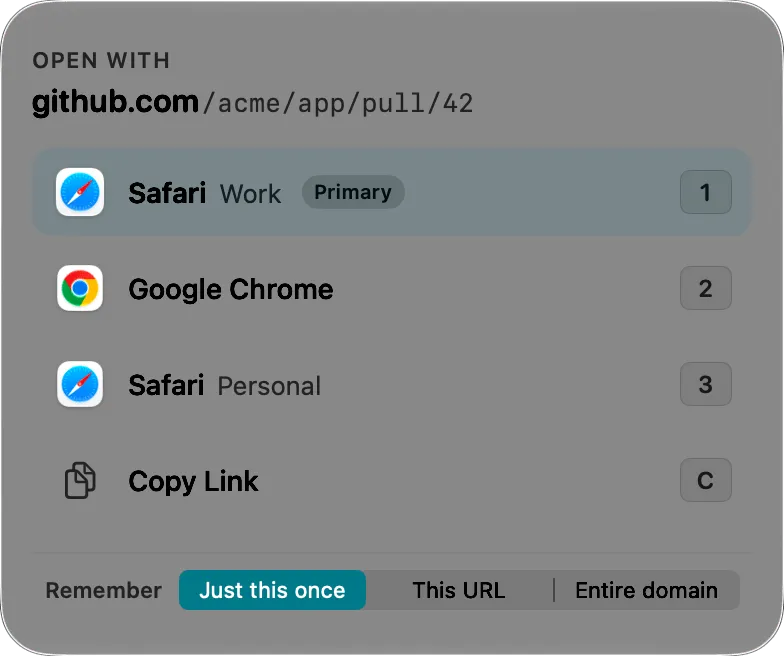
Turn on Browser profiles and each profile becomes its own choice — Safari · Work, Google Chrome, Safari · Personal — in the picker, in rules and as your primary browser.

LinkRouter asks macOS once per browser for access to its profile list. Safari profiles appear while one of their windows is open.

LinkRouter's picker listing Safari · Work, Google Chrome and Safari · Personal, with Copy Link and the Remember control

Privacy

Nothing leaves your Mac.

LinkRouter has no account, no server and no analytics. Everything it knows — which browsers you chose, the rules you saved, how many links it routed this week — is one file in its sandbox container.

~LibraryContainers com.modernsoftwareworks.LinkRouter
com.modernsoftwareworks.LinkRouter.plist a few KB
preferences
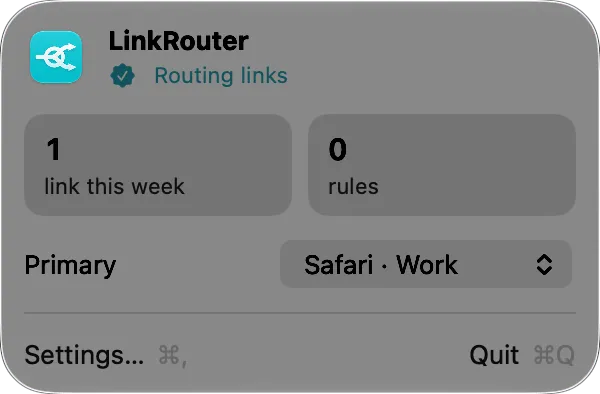
Primary browser, picker rows, rules, this week’s count
browserDataBookmarks
The profile folders you granted, as macOS bookmarks
Counts stay on this Mac.
Links routed and rules saved are written to the app’s sandbox container and nowhere else. Delete the app and the record goes with it.
Sandboxed.
Profile lists are read only after you grant each browser’s folder through macOS’s own open panel. Safari is asked while a window is open.
No analytics. Anywhere.
Not in the app, and not on this page — no cookies, no trackers, no third-party requests.

Read the privacy policy

Set up

Ready in a minute.

  1. Make it the default

    macOS asks you to confirm. Your current browser stays your primary.

  2. Choose up to four

    The picker is the editor: add, remove, drag to reorder.

  3. Try it

    Open a sample link and see the picker appear beside the window.

  4. All set

    Primary, profiles, launch at login, menu bar icon. Done.

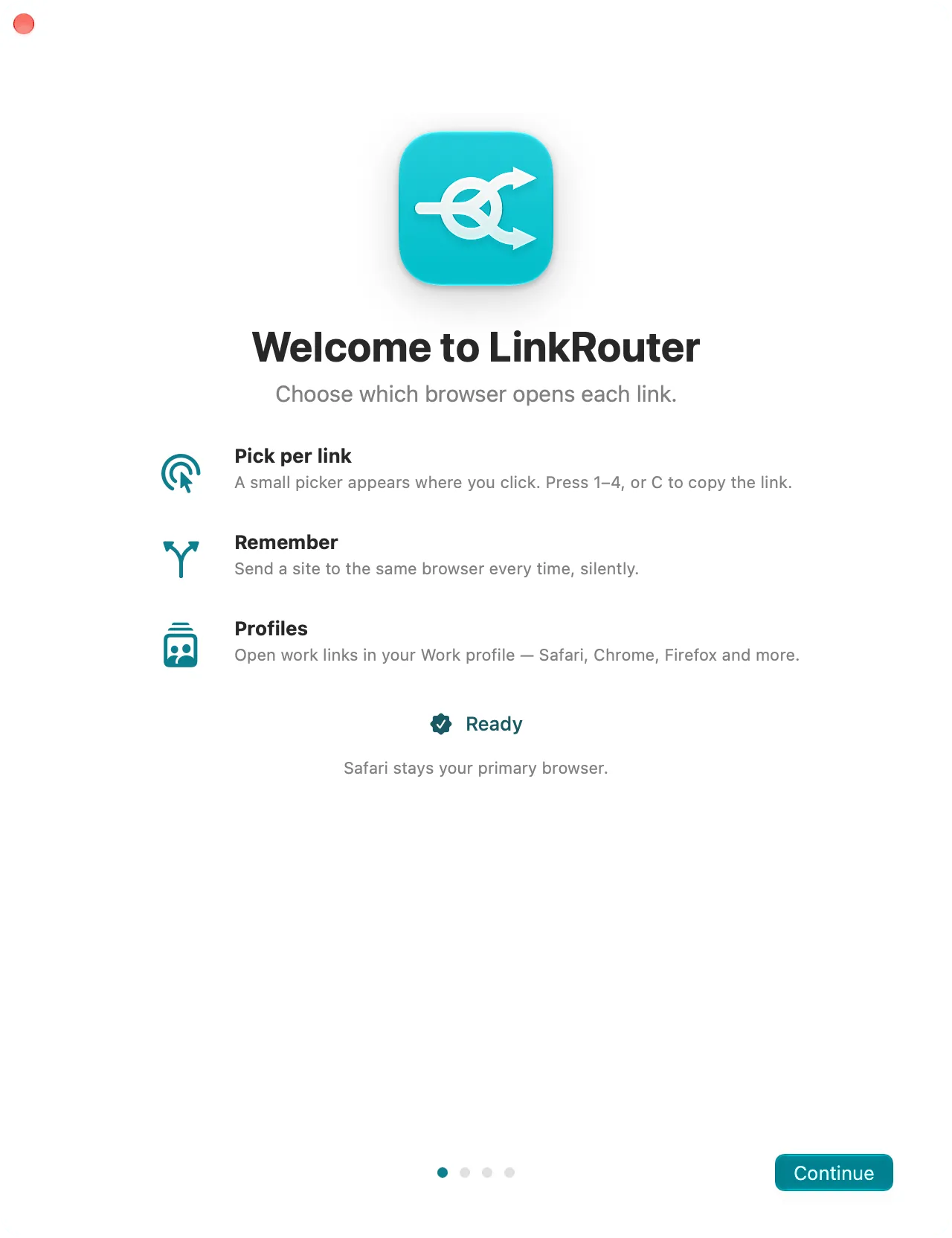
LinkRouter's first onboarding page: Make LinkRouter the default browser

Compatibility

Works with the browsers you have.

A browser with two or more profiles shows up as its profiles; with one, as itself.

  • Chromium

    with profiles

    • Google Chrome
    • Chrome Beta, Dev and Canary
    • Brave
    • Microsoft Edge
    • Vivaldi
    • Opera
  • Firefox

    with profiles

    • Firefox
    • Firefox Developer Edition
    • Firefox Nightly
  • Safari

    profiles while a window is open

    • Safari
  • Anything else

    as itself

    • Every other browser on your Mac

LinkRouter.
Coming soon for Mac.

Requires macOS 15 or later. Liquid Glass on macOS 26 and later.

Questions? hello@modernsoftware.works